Reports
Customize Report Columns
Feature Summary
Customize Report Columns lets you choose exactly which columns appear in a report, and in what order — on screen and in the PDF and Excel exports. Show only the data you care about, surface your own custom asset attributes alongside the standard columns, and save the layout so scheduled reports arrive the same way on every run.
How to Use
Note!
If you leave “Customize Report Columns” unticked, the report runs with its standard default columns. Turn it on whenever you want to add, remove, or reorder columns.
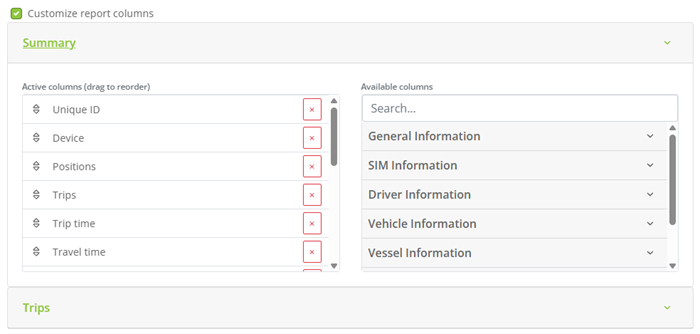
Figure 1 — The column picker: drag the active columns to reorder them, and search the available columns to add more.
How-To: Customize Columns on a Report
Go to the Navigation menu and click on “Reports”
Choose the type of report to run
Tick “Customize Report Columns”
In each section, drag the “Active columns” to reorder them, click “+” to add an “Available column”, and click “×” to remove an active column
Use the search box to filter a long list of available columns
Click on “Run Report”
How-To: Customize Columns on a Scheduled Report
Go to the Navigation menu and click on “Reports”
Choose “Scheduled Reports”
Click on “+ Add New Scheduled Report” (or “Edit” next to an existing one)
Tick “Customize Report Columns” and choose your columns
Click on “Create Scheduled Report” (or “Save Changes”)
Your column selection is saved with the schedule and used on every run.
How-To: Add an Attribute as a Column
Define the attribute on your assets in “Settings”
Open a supported report and tick “Customize Report Columns”
Find the attribute in the “Available columns” list and click “+” to add it
Additional Information
Key Features
Choose Your Columns — add, remove, and reorder columns to show only the data you need.
Drag to Reorder — drag active columns into the exact order they should appear in the report.
Searchable Column List — filter a long list of available columns by name.
Multi-Section Reports — reports such as Activity and Driver Summary customize each section independently.
Attributes as Columns — add any custom asset attribute defined in Settings as a report column.
Saved for Scheduled Reports — your selection is saved with a scheduled report and reused on every run.
Applies to Exports — your chosen columns carry through to the PDF and Excel output.
Available On
Column customization is available on the Activity, Position, Asset Location, Asset Movement, Event Detail, Event Summary, Alert Summary, Driver Summary, Fleet Trip, Geofence Dwell, Asset Activation, Asset Configuration, Fuel Consumption, User Activity, and Raw Log reports.
Use Cases
Focused operational reports — show only the metrics a given team needs and hide the rest.
Custom asset data — surface IMEI, SIM, vehicle/vessel, or other attribute data directly in the report.
Consistent scheduled delivery — lock in a column layout so recurring emailed reports always match.
Cleaner exports — control exactly which columns appear in the PDF and Excel files you share.