Manage
Attributes
Feature Summary
Attributes are the descriptive fields that travel with your Assets, Geofences, and Places — identifiers like IMEI, VIN, and vessel MMSI, a gate code on a Place, a photo on a Geofence, plus anything specific to your operation. Account administrators decide exactly which attributes apply to their organization: keep the built-in fields that fit, hide the ones that don't, reorder them, and add their own custom fields and groups.
Overview
GSatTrack ships a set of default attributes, organized into groups, for Assets, Geofences, and Places. From a single screen — Manage > Custom Attributes — an account administrator can tailor that set to their organization and industry:
- Show or hide default groups and attributes, so operators see only the fields that matter.
- Reorder groups and attributes to match how the team works.
- Create custom attributes and groups for organization- or industry-specific data.
Default (system) attributes can be hidden and reordered but not edited or deleted; custom attributes can be created, edited, deleted, hidden, and reordered. The result is a record set tailored to each organization — an aviation operator tracking tail numbers and inspection dates, a maritime fleet tracking MMSI and charter details, a construction company tracking equipment hours — without the fields they don't need.
How to Use
Attributes are defined in Manage > Custom Attributes and filled in on each record (Asset, Geofence, or Place). The Custom Attributes screen lists Attribute Groups and Attributes for each entity type, with controls to add, edit, show/hide, reorder, and delete.
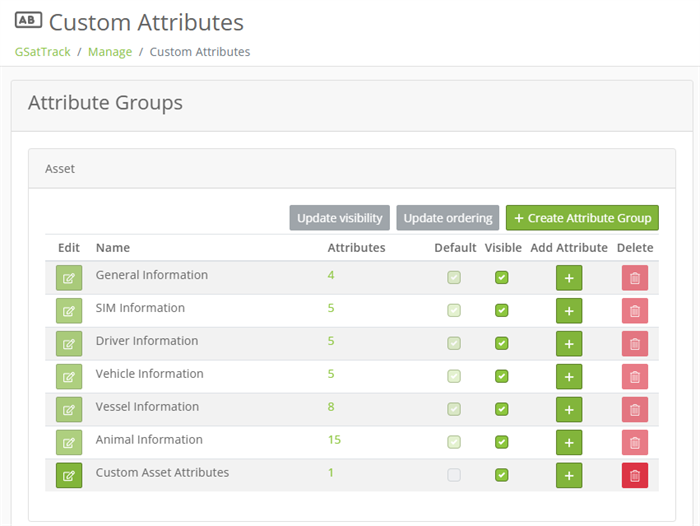
Figure 1 — Manage > Custom Attributes: define groups and attributes for Assets, Geofences, and Places, and show, hide, or reorder them.
How-To: Open the Custom Attributes Screen
- In the Navigation menu, select the “Manage” icon.
- Select “Custom Attributes”.
- Use the Asset, Geofence, and Place sections to manage each entity type’s groups and attributes.
How-To: Create an Attribute Group
- Open Manage > Custom Attributes.
- In the section for the entity type (Asset, Geofence, or Place), click “Create Attribute Group”.
- Enter a Name and confirm the Type, then click “Create Attribute Group”.
How-To: Create an Attribute
- Open Manage > Custom Attributes.
- Click “Create Attribute” on the desired group (or the “+” next to it).
- Choose a Data Type (Text, Number, or File) and enter a Name and optional Description.
- Optionally enter Permitted Values (comma-separated) to limit entry to a fixed set of choices.
- Click “Create Attribute”.
How-To: Show, Hide, or Reorder Attributes
- Open Manage > Custom Attributes.
- To show or hide, tick or clear the “Visible” checkbox for a group or attribute, then click “Update Visibility”.
- To reorder, drag the rows into the desired order, then click “Update Ordering”.
- Default attributes can be hidden and reordered, but not edited or deleted.
How-To: Fill In Attribute Values
- In the Navigation menu, select the “Manage” icon.
- Select an item, like “Assets”.
- Click the options icon next to the record to edit (for example, “Asset Options”).
- Expand the “Edit Asset” menu, then the “Attributes” section.
- Enter the desired values; a description of each default field is provided below.
- Click on “Save Changes”.
Additional Information
The Attributes feature is designed to be highly customizable, allowing organizations to adapt it to their specific operational requirements. Users can define attributes that reflect their unique business processes, making it easier to track compliance, performance, and other critical aspects of asset management. The feature also integrates with GSatTrack’s reporting tools, enabling users to surface any attribute as a report column with Customize Report Columns.
Custom Attributes
Account administrators manage Custom Attributes directly in the portal at Manage > Custom Attributes — no support ticket required. From there you can:
- Create custom attribute groups bound to Assets, Geofences, or Places.
- Create custom attributes inside any group, each with a Data Type (Text, Number, or File) and optional Permitted Values that constrain entry to a fixed set of choices.
- Show, hide, and reorder both your custom attributes and the default ones, per account.
Custom attributes appear on the record’s edit form alongside the default groups, and their values are available throughout the portal for reference, filtering, and reporting.
Default Attributes
Assets
General Information
These attributes help distinguish Assets of the same type from one another.
- IMEI: International Mobile Equipment Identifier - unique device ID number used by networks
- Serial Number: unique device identifier provided by the manufacturer that specifies individual units
- Notes: open field, users often include any relevant information about acquisition, special operating requirements, fleet ID, or home location
- Photo: users can include a photo by attaching it to the Photo attribute
SIM Information
They serve primarily to help Asset managers have pertinent network information available at their fingertips.
- ICCID: SIM card’s unique serial number
- Phone Number: number associated with the SIM
- PIN Code: open field for securing asset use
- PIN Unlock Key (PUK/PUC): an open field for securing asset use
- Provider: a carrier that provides service
Driver Information
They serve primarily to help Asset managers sort and find Assets by their operator information, and to have that operator’s personal information available in the case of emergency.
- Mission: intended use
- Driver: Driver’s name
- Phone Number: contact information for the driver
- License Number: operator’s license number
- National Identity Card Number: passport or other identifying document
Vehicle Information
They serve primarily to help Asset managers keep pertinent information available for emergencies.
- Fuel Efficiency: average or target fuel efficiency range, input by the user
- Make and Model: make refers to the manufacturer, model refers to the product line
- Purchase Date: date the organization acquired the asset
- VIN: seventeen alphanumeric characters that identify the specific vehicle
- Plate Number: license plate number(s) associated with the vehicle
Vessel Information
They serve primarily to help Asset managers keep pertinent information available for emergencies.
- Name: vessel’s name
- Call Sign: radio communications identifier
- Flag of Registry: used to identify the vessel’s port of origin
- IMO Number: International Maritime Organization Number format is usually IMO followed by seven digits which are issued by IHS Fairplay
- Maritime Mobile Service Identity (MMSI): Maritime Mobile Service Identity format is usually nine digits assigned to a DSC radio or AIS unit
- Tonnage: weight of freight or cargo
- Class: type of vessel
- Skipper: name of the captain
Animal Information
These attributes support livestock, wildlife, and other animal-tracking deployments.
- Producer: the producer or operation responsible for the animal
- Birth Date: the animal’s date of birth
- Sire: the animal’s father (sire)
- Mother: the animal’s mother (dam)
- Price: acquisition or sale price
- Vaccination Dates: record of vaccination dates
- Illness: notes on illness or medical history
- Weight: the animal’s weight
- Tag / Lot Number: ear tag or lot identifier
- Breed: the animal’s breed
- Species: the animal’s species
- Private or State Owned: ownership type (Private or State)
- Rehabilitated: whether the animal has been rehabilitated (Yes or No)
- Gender: the animal’s gender (Male or Female)
- Calved: whether the animal has calved (Yes or No)
Places
- Contact: open text field, can be used to store a person’s name, contact information, and other relevant details
- Photo: allows the user to upload a photo to the Place, which will display when the Place is selected from the Map View.
- Unique Key: allows users to store things like gate codes, and also allows users to search for the Place using the unique key instead of the name.
Geofences
- Photo: allows the user to upload a photo to the Geofence, which will display when the Geofence is selected from the Map View.