Map Layers
Map Layers: Airplanes.Live
1. What the Airplanes.Live layer does
The Airplanes.Live layer overlays live ADS-B aircraft onto the tracking map and refreshes their positions in near-real-time, so you see air traffic moving around your assets as it happens.
You choose one of two coverage modes when you create the layer:
- Automatic — the layer follows your visible map area, watching whatever you have on screen.
- Fixed — an administrator draws a box that is always watched, no matter where anyone pans.
On the map, each aircraft is an icon you can hover for a quick label and click for full ADS-B detail. A companion Aircraft panel lists everything in view and lets you search and filter it.
The layer suits Aerospace and aviation operators tracking airframes and rotorcraft, Government and Emergency Response teams that need live air-traffic context during an incident, Maritime operations watching the airspace over their waters, and any team that wants to see live aircraft around their assets.
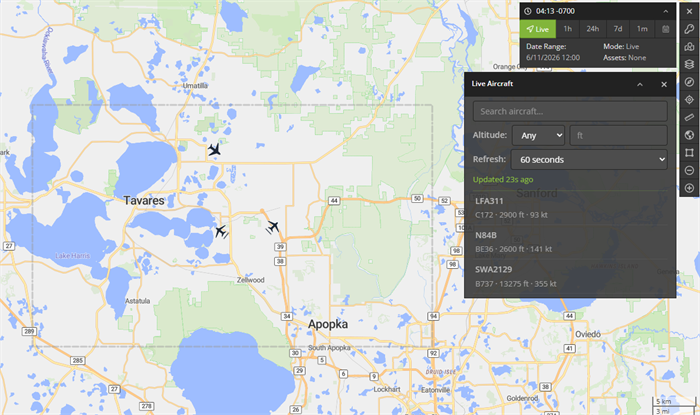
Figure 1 — The Airplanes.Live layer active on the map.
2. Enabling it (administrator): create the map layer
Creating the layer is a one-time, administrator-only step. It stores the Airplanes.Live API key and the coverage area the layer watches.
Step 2.1 — Add a map layer
Go to Manage › Map Layers, then click Add Map Layer.
Step 2.2 — Choose the Airplanes.Live type
Set Type to Airplanes.Live. Selecting it reveals the Airplanes.Live configuration fields.
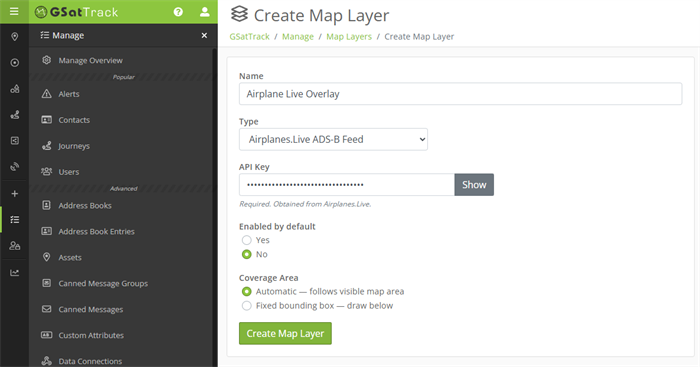
Figure 2 — The map layer form configured for Airplanes.Live.
Step 2.3 — Fill in the fields
| Field | What to enter | Required |
|---|---|---|
| Name | A friendly label for the layer, shown to users in the Layers menu. | Yes |
| API Key | Your Airplanes.Live API key. The field is a password input with a Show / Hide toggle. On a later edit the stored key is never shown — leave it blank to keep the existing key, or type a new key to replace it. | Yes (on create) |
| Coverage Area | Automatic (the layer follows each viewer's visible map area) or Fixed (you draw one box that is always watched). See Step 2.4. | Yes |
| Enabled by default | Whether the layer starts on for assigned users. | — |
Click Save.
Step 2.4 — Choose a coverage area
- Automatic (default) — each viewer's request follows their own visible map area. Best when different operators watch different regions.
- Fixed — you draw one bounding box, and the layer always watches exactly that area no matter where a viewer pans. Choosing Fixed reveals the Bounds picker: drag a box on the preview map, or type the North, West, South, and East edges.
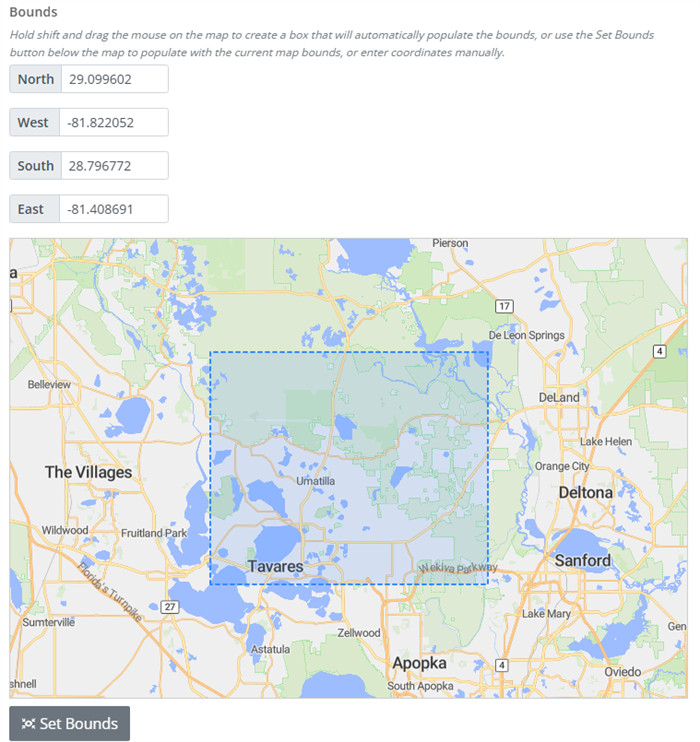
Figure 3 — Drawing a Fixed coverage box.
Which mode?
Use Automatic for general situational awareness that follows the operator. Use Fixed to keep a specific area (an airport, a corridor, an area of operations) under constant watch regardless of where anyone is looking.
3. Turning the layer on
If an administrator set the layer to Enabled by default (Step 2.3), it is already on when you open the map — skip ahead to reading it (Section 4). Otherwise, open the Layers control from the Map Mode Indicator in the top-right corner of the map and toggle your Airplanes.Live layer on.
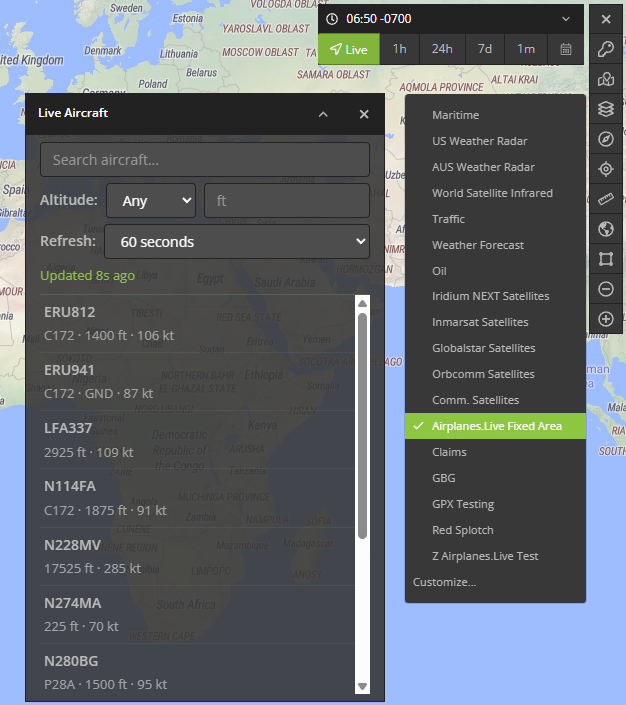
Figure 4 — Turning the layer on from the Layers menu.
The moment it activates, three things appear:
- A dashed coverage overlay marking the exact area being watched. Its slow "marching" dashes are a cue that the layer is live. In Automatic mode the overlay follows your view; in Fixed mode it stays on the administrator's box.
- Aircraft icons for every aircraft in the watched area.
- The Aircraft panel, which lists and filters those aircraft (Section 5).
4. Reading the map
Aircraft icons
Each aircraft is drawn with an icon chosen from its ADS-B emitter category (or, when the category is missing, inferred from its ICAO type code):
| Icon | Aircraft kinds (ADS-B category) | Rotates to heading? |
|---|---|---|
| Airliner | Large, High-Vortex Large, Heavy (A3–A5) | Yes |
| Light | Light, Small (A1–A2) | Yes |
| High-performance | High-performance (A6) | Yes |
| Helicopter | Rotorcraft (A7) | No |
| Glider | Glider / Sailplane, Ultralight (B1, B4) | Yes |
| Balloon | Lighter-than-air (B2) | No |
| UAV | Unmanned aerial vehicle (B6) | Yes |
| Ground | Surface vehicle (C1–C2) | No |
| Unknown | Anything unrecognized | No |
Fixed-wing icons rotate to point in the direction the aircraft is heading; rotorcraft, balloons, ground vehicles, and unknown blips stay upright.
Hover for a quick label
Hover an aircraft to see its identifier — the callsign if known, otherwise the registration, otherwise the Mode-S hex.
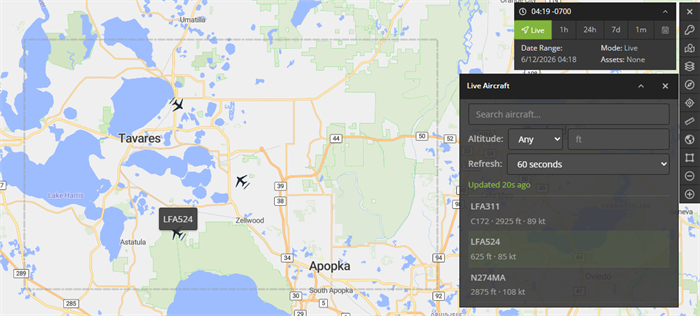
Figure 5 — The hover tooltip.
Click for full detail
Click an aircraft to open its detail popup. The top rows are the everyday fields; an Advanced section expands to the full ADS-B data set. Empty fields are hidden, and any emergency or alert condition is highlighted.
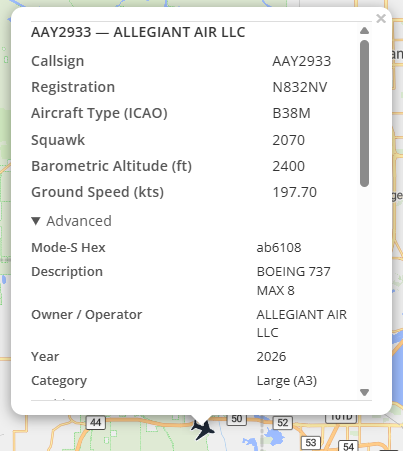
Figure 6 — The aircraft detail popup.
Primary fields (always shown when present):
| Field | Meaning |
|---|---|
| Callsign | Flight callsign. |
| Registration | Aircraft registration (tail number). |
| Aircraft Type (ICAO) | ICAO type designator (e.g. B738). |
| Squawk | Transponder squawk code. |
| Barometric Altitude (ft) | Pressure altitude. |
| Ground Speed (kts) | Speed over the ground. |
Advanced fields (under the Advanced collapse):
| Field | Meaning |
|---|---|
| Mode-S Hex | 24-bit ICAO address. |
| Description | Aircraft description. |
| Owner / Operator | Registered owner or operator. |
| Year | Year of manufacture. |
| Category | Decoded ADS-B emitter category (e.g. "Large (A3)"). |
| Position Source | How the position was derived. |
| Geometric Altitude (ft) | GNSS altitude. |
| Indicated Airspeed (kts) | IAS. |
| True Airspeed (kts) | TAS. |
| Mach | Mach number. |
| Track (°) | Ground track. |
| Track Rate (°/s) | Rate of turn. |
| Roll (°) | Roll angle. |
| Magnetic Heading (°) | Magnetic heading. |
| True Heading (°) | True heading. |
| Barometric Climb Rate (ft/min) | Baro vertical rate. |
| Geometric Climb Rate (ft/min) | GNSS vertical rate. |
| Emergency | Emergency state (highlighted when set). |
| QNH (hPa) | Selected pressure setting. |
| Selected Altitude (MCP, ft) | Autopilot selected altitude. |
| Selected Altitude (FMS, ft) | FMS selected altitude. |
| Selected Heading (°) | Autopilot selected heading. |
| Nav Modes | Active autopilot modes. |
| Distance from Center (nmi) | Distance from the query center. |
| Bearing from Center (°) | Bearing from the query center. |
| Last Seen (s) | Seconds since last message. |
| Emergency Alert | Alert flag (highlighted when set). |
| Special Position ID | SPI flag. |
| Last Position Update (s) | Seconds since last position. |
| NIC | Navigation Integrity Category. |
| Radius of Containment (m) | Position containment radius. |
| NIC (Barometric) | Barometric integrity. |
| NAC-P | Position accuracy category. |
| NAC-V | Velocity accuracy category. |
| SIL | Surveillance Integrity Level. |
| SIL Type | SIL basis. |
| GVA | Geometric Vertical Accuracy. |
| SDA | System Design Assurance. |
| ADS-B Version | ADS-B protocol version. |
| Mode-S Messages Received | Message count. |
| RSSI (dBFS) | Signal strength. |
| MLAT Fields | Fields derived by multilateration. |
| TIS-B Fields | Fields from TIS-B. |
5. The Aircraft panel
The Aircraft panel lists every aircraft across your active Airplanes.Live layers (each aircraft appears once, even if two layers overlap). Use it to find and filter aircraft.
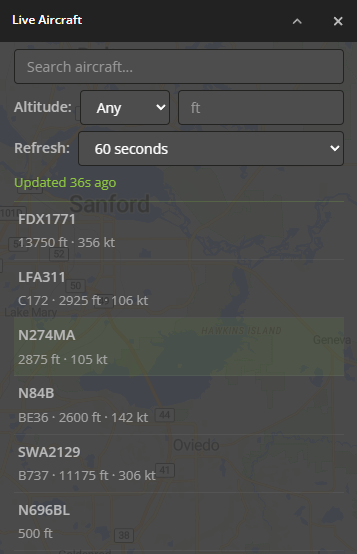
Figure 7 — The Aircraft panel.
- Search — type to match on callsign, registration, hex, type, operator, description, or squawk. The search filters both the list and the map markers.
- Altitude — show Any aircraft, or only those Under or Over a given altitude in feet.
- Refresh — how often the layer pulls fresh positions: 2, 5, 10, 15, 30, or 60 seconds (60 s by default). Your choice is remembered in your browser.
- Status line — shows "Updated N s ago" after each successful refresh, or a short message if a refresh doesn't succeed.
- Aircraft list — one row per aircraft (identifier plus type · altitude · speed). Hover a row to flash that aircraft's tooltip on the map; click a row to open its detail popup (the map pans to it only if it's off-screen).
Closing the Aircraft panel turns the Airplanes.Live layer(s) off.
6. Coverage modes in depth
Automatic — the layer watches your visible map area and re-queries as you pan and zoom (after a brief pause so a quick drag doesn't fire many requests). When you zoom far out, the watched area becomes a large circle centered on your view rather than an oversized rectangle.
Fixed — the layer always watches the administrator's drawn box. Panning elsewhere doesn't change what it watches; panning the box back into view refreshes it immediately.
When the layer is quiet — to avoid needless requests, a Fixed layer fetches nothing while its drawn box is entirely off-screen, and resumes with an immediate refresh as soon as you pan it back into view.
Quick reference
- Where to find it: Map Mode Indicator → Layers → your Airplanes.Live layer.
- Prerequisites: an administrator-created Airplanes.Live layer + a valid API key.
- Enable it (admin): Manage › Map Layers › Add Map Layer → Type Airplanes.Live → enter the API Key → choose Automatic or Fixed coverage → Save.
- Coverage modes: Automatic (follows each viewer's map) or Fixed (a drawn box, always watched).
- Reading aircraft: hover for the callsign/registration/hex; click for full ADS-B detail (with an Advanced section); fixed-wing icons rotate to heading.
- Aircraft panel: search, altitude filter (Under/Over feet), refresh interval (2–60 s), last-updated status, and a click-to-locate aircraft list.
- Refreshes: every 2–60 seconds (60 s default), only while the area is in view and in the layer's zoom range.