Items
Users
Feature Summary
The Users feature in GSatTrack manages user accounts for individuals and teams in satellite and asset-tracking operations. Administrators can create, modify, and disable accounts and use role-based access control to grant each user the appropriate level of access to platform functions and data.
How to Use
How-To: Add Users
- Go to the Navigation menu and click on “Add Item.”
- Click on “Add User.”
- Fill in the required and desired optional fields
- Click on “Create Users”
How-To: Edit Users
- Go to the Navigation menu and click on the “Manage” icon
- Click on “Users.”
- Click on the “Edit” button next to the desired Users.”
- Choose the desired section to edit and make the desired changes
- Click on the “Save Changes” button
How-To: Delete Users
- Go to the Navigation menu and click on the “Manage” icon
- Click on “Users.”
- Click the “Delete” button next to the desired “Users.”
- Click the “Delete” button on the pop-up window
How-To: Enable Inactivity Notifications
- Go to the Navigation menu and click on the “Manage” icon
- Click on “Users.”
- Click the “Notify when inactive” button above the user list (available to administrators).
- Enter one or more recipient email addresses — separated by a comma, semicolon, or pipe — and/or click “Choose contacts…” to select account contacts.
- Set the number of “days inactive” that should trigger a notification (the default is 30).
- Click “Enable.”
To change recipients or the threshold later, reopen “Notify when inactive,” edit the form, and click “Save Changes.” To turn notifications off without losing the configuration, click “Disable.”
While notifications are enabled, every user past the threshold shows an “Inactive” badge in the Last Login column of the user list; hover the badge to see how many days it has been. Sort by Last Login to bring them together.

Figure 1 — The inactivity-notification form: enter recipients and set how many days of inactivity should trigger a notification.
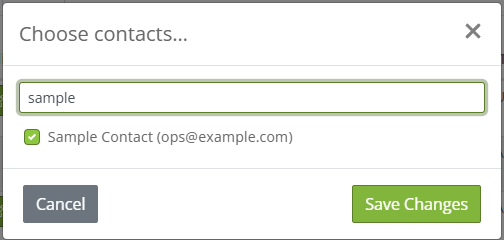
Figure 2 — Selecting account contacts as recipients from the “Choose contacts…” dialog.
Additional Information
User Profiles and Permissions
Users are the login identities that provide access to the GSatTrack portal. There are three default user types, each offering different levels of control and access:
- Administrator: This user type controls the platform, including managing user levels, permissions, and all configurable aspects. Ideal for fleet managers, high-level engineers, or command officers, Administrators should be limited to a small group to maintain security.
- Standard User: This flexible user type can be tailored to fit various roles, from field operatives to team leaders. Administrators can configure access to assets, geofences, alerts, and other portal features, making it ideal for users who need specific data visibility.
- Anonymous User: This user type is used to share portal data externally, such as tracking a public event or shipment. While not allowed to log in, this user type facilitates sharing information with external parties.
Flexibility of User Types
Permissions are customizable, allowing administrators to create multiple levels within the primary user categories, such as super-admins or sub-admins. This flexibility supports complex organizational structures and accountability systems.
User Fields and Preferences
Administrators can specify user properties, preferences, and permissions to create detailed user profiles. Fields include:
- Personal Information: First name, last name, username, email, and password.
- Security Settings: Options for two-factor authentication and welcome screen visibility.
- System Preferences: Language, speed display, fuel units, coordinate formats, and time zone.
- Map Preferences: Default map settings, timeframe history, position grouping, and emergency audio alerts.
Permissions and Access Control
Administrators can configure permissions anytime, allowing dynamic control over user capabilities. Permissions include adding/editing assets, geofences, places, journeys, etc. Including or exclusion can limit access to assets, groups, geofences, and other objects.
Inactivity Notifications
Administrators can have GSatTrack watch for accounts that have gone quiet and email a chosen list of recipients when a user crosses an inactivity threshold. The check runs automatically each day, so it needs no ongoing attention once enabled.
The control sits in the user-list toolbar, and its bell icon reflects the current state — an outline bell when off, and a filled bell when on.
Figure 3 — The “Notify when inactive” chip when notifications are off.
Figure 4 — The chip when notifications are on.
- Recipients can be typed email addresses, account contacts, or a mix of both.
- The inactivity threshold is configurable from 1 to 3650 days (default 30).
- Recipients receive a single daily email listing each newly-inactive user and the date they last signed in (or “Never”), with timestamps shown in each contact’s time zone.
- Each user is reported once, so recipients are not re-notified about the same account on later days.
- Only users an administrator could remove from Manage Users are evaluated; the account’s primary user, shared views, and cross-account administrators are not included. Anonymous users are, because using an anonymous access link counts as signing in.
- While notifications are enabled, users past the threshold carry an “Inactive” badge in the user list, so the accounts that may need to be removed stand out at a glance. The badge follows the same rule as the email.
- Cross-account administrators see an “Inactive users (N+ days)” count under each account on the Choose Account page — highlighted when above zero — without signing in to the account. Clicking the count switches into that account and opens Manage Users directly. Accounts that have not enabled notifications show “User inactivity: Disabled,” and clicking “Disabled” opens that account’s Manage Users so the feature can be enabled.
- Disabling the feature keeps the saved recipients and threshold, so it can be switched back on with one click. While it is off, no user is considered inactive, so the badges and the account count are not shown.
- If every recipient disappears later — for example the chosen contacts are deleted or disabled — notifications switch themselves off rather than silently going nowhere. Reopen “Notify when inactive,” add a recipient, and enable again.
Key Features
- User Account Management — Create and manage accounts, including login credentials and personal information.
- Role-Based Access — Assign roles that define each user's permissions and access levels, tailored to their responsibilities.
- Access Control — Granular control over what users can see and do, supporting data security and privacy.
- Custom User Profiles — Specify which features and data are visible and accessible per user.
- Audit Trails — Track user activities and monitor user actions within the platform.
Use Cases
- Fleet Management: Fleet managers create accounts for team members to monitor and manage vehicles, drivers, and operational data.
- Security Operations: Security teams restrict access to sensitive data and assets so only authorized personnel can view them.
- Emergency Response: Response teams create accounts and assign roles and access levels during emergencies.
- Asset Monitoring: Organizations with multiple assets ensure asset data reaches the right personnel, such as maintenance teams or asset owners.