Supported Devices
Iridium Extreme 9575
Device Summary
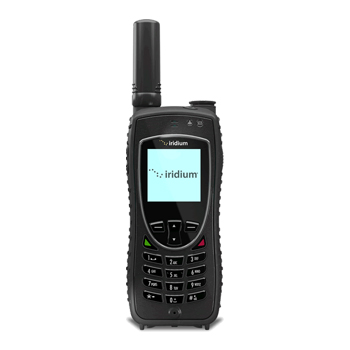
The Iridium Extreme 9575 is a rugged Iridium satellite phone with built-in GPS and a dedicated SOS button. Alongside voice, SMS and email, it sends position reports, check-ins, text messages and emergency alerts to GSatTrack over Iridium Short Burst Data (SBD), and GSatTrack can send text messages, canned messages and configuration commands back to the handset the same way. Tracking runs on the handset's SBD (Location Based Services) subscription, which is separate from the SIM card's voice and data plan.
Server Routing
The handset does not connect to a server address itself. Its Iridium service provider provisions an SBD subscription for the handset's IMEI and routes the SBD traffic to GSatTrack over Iridium DirectIP. Give the service provider the following destination when the SBD subscription is activated:
| Field | Value |
|---|---|
| Server | mo.sbd.protocolparser.com |
| Server (Canada) | mo.sbd.ca.protocolparser.com |
| Port | 4752 |
| Protocol | TCP (Iridium DirectIP) |
Setup
An Iridium Extreme must be registered with GSatTrack before it will send any tracking data. Registration pairs the handset with its asset in GSatTrack using two 5-digit codes derived from the IMEI, and finishes with GSatTrack sending the handset a Portal Status confirmation over SBD. Until that confirmation arrives the handset sends nothing over SBD except its start-up message, so tracking, messaging and SOS reporting all depend on completing every step below.
Activate SBD. Ask your Iridium service provider to activate Location Based Services (SBD) on the handset's IMEI, with DirectIP delivery to the destination in the table above. This is a separate subscription from the SIM card's voice plan (Iridium's SBD plan for the Extreme, LBS 8, includes 8 KB of SBD traffic per month). The IMEI is printed on the handset label and is also shown on the Portal Registration screen in the next step.
Start registration on the handset. From the idle screen dial
*#575#and press the green key. The Portal Registration screen displays the handset's IMEI and Portal Registration Code #1.Create the asset in GSatTrack. Go to the navigation menu, click Add Item then Add Asset, choose the device Iridium Extreme, and enter the 15-digit IMEI as the asset's ID. Enter Code #1 from the handset in the Portal Registration Code #1 field so GSatTrack can confirm the IMEI was typed correctly; the dialog then displays Portal Registration Code #2. Save the asset.
Alternatively, browse to
/IridiumExtremeon your GSatTrack site for the guided Add Iridium Extreme page, which walks through these same steps and sends the confirmation in step 5 automatically.Complete registration on the handset. On the Portal Registration screen press Register, enter Code #2 and press OK. The handset displays OK and, outdoors with a clear view of the sky, sends its start-up message over SBD.
Send the Portal Status confirmation. In GSatTrack, open the asset's Edit Asset dialog and click Send Portal Registration. GSatTrack sends the handset a Portal Status confirmation carrying the portal provider details, followed by the text "Portal Registration Completed!". If the handset is off or out of coverage the message waits at the Iridium gateway for up to five days.
Verify. Dial
*#578#and press the green key: a registered handset displays Registered together with the portal provider name. Send a check-in with the right soft key, or set a reporting interval (below); the asset should appear at the handset's location in GSatTrack within a couple of minutes.
Power cycles
If a handset that was working stops reporting after being switched off and on, check *#578# and re-send the confirmation from Edit Asset → Send Portal Registration.
Automatic Position Updates
The reporting interval can be set remotely from GSatTrack or on the handset itself.
From GSatTrack
The reporting interval is sent to the handset with the Send Command feature. The command is delivered over SBD the next time the handset is on and in coverage.
Go to the navigation menu and click Assets.
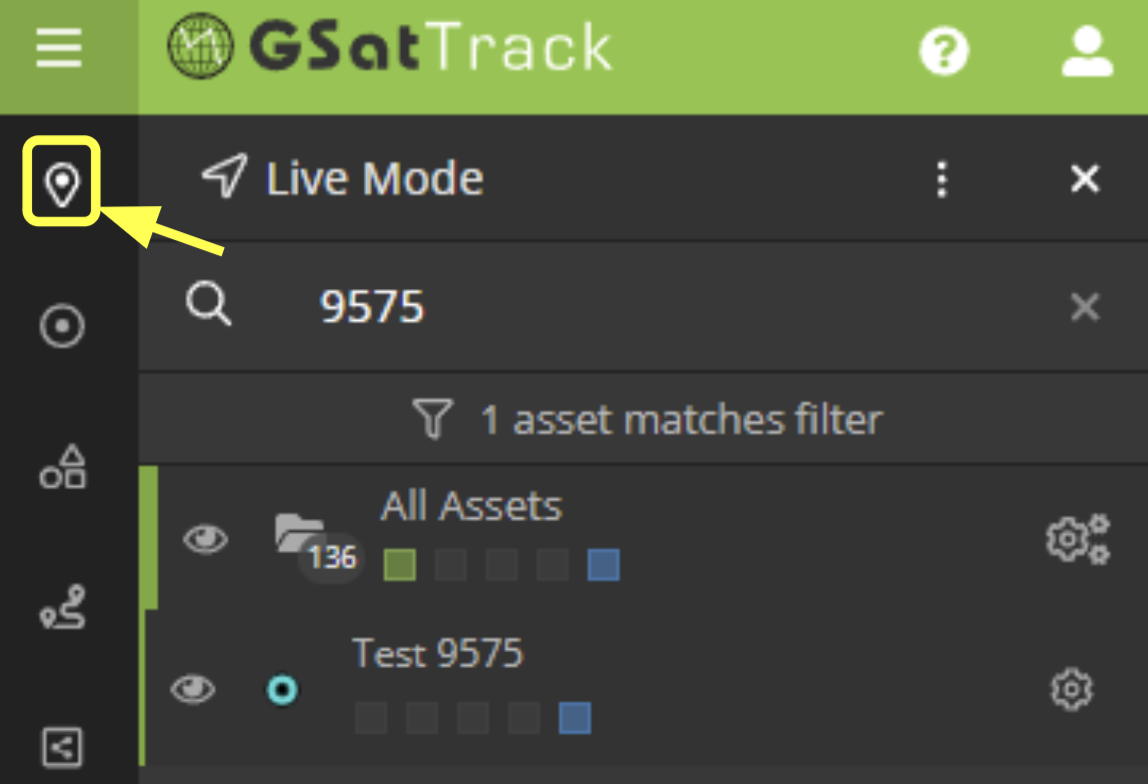
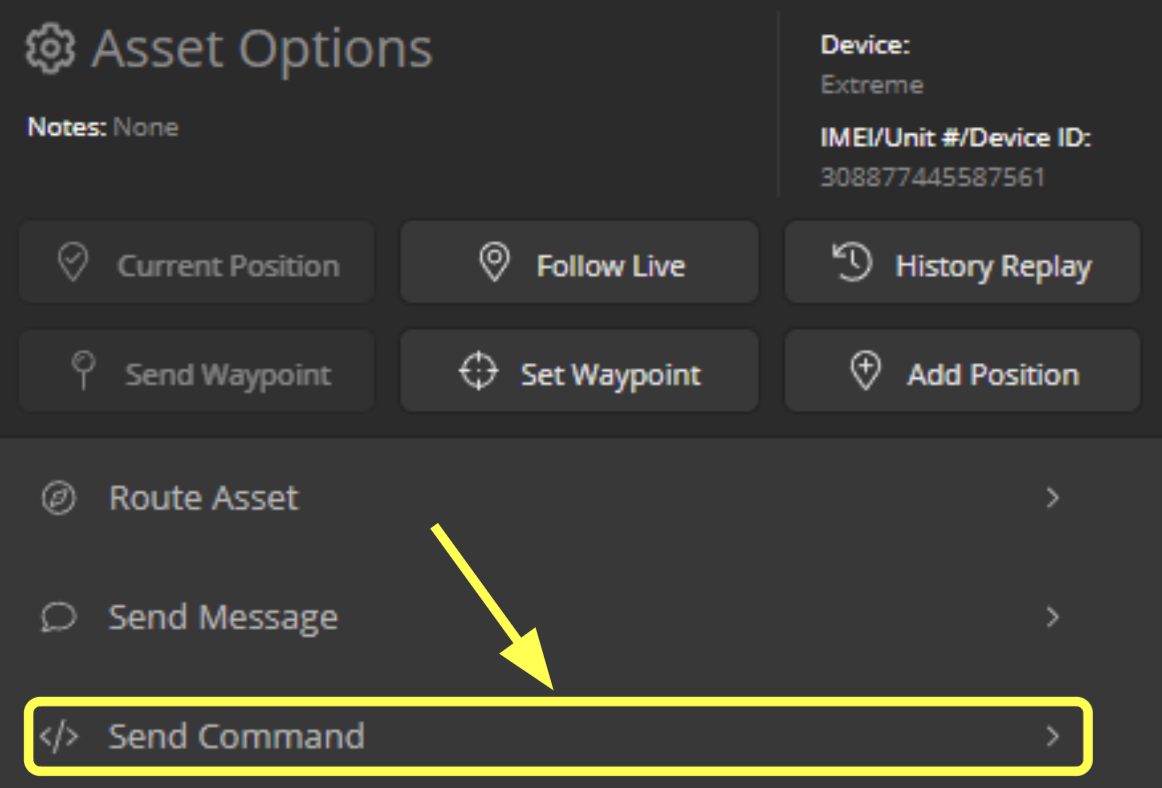
Select the Asset Options icon next to the desired asset.

Click Send Command.
Expand the Reporting Interval dropdown menu.
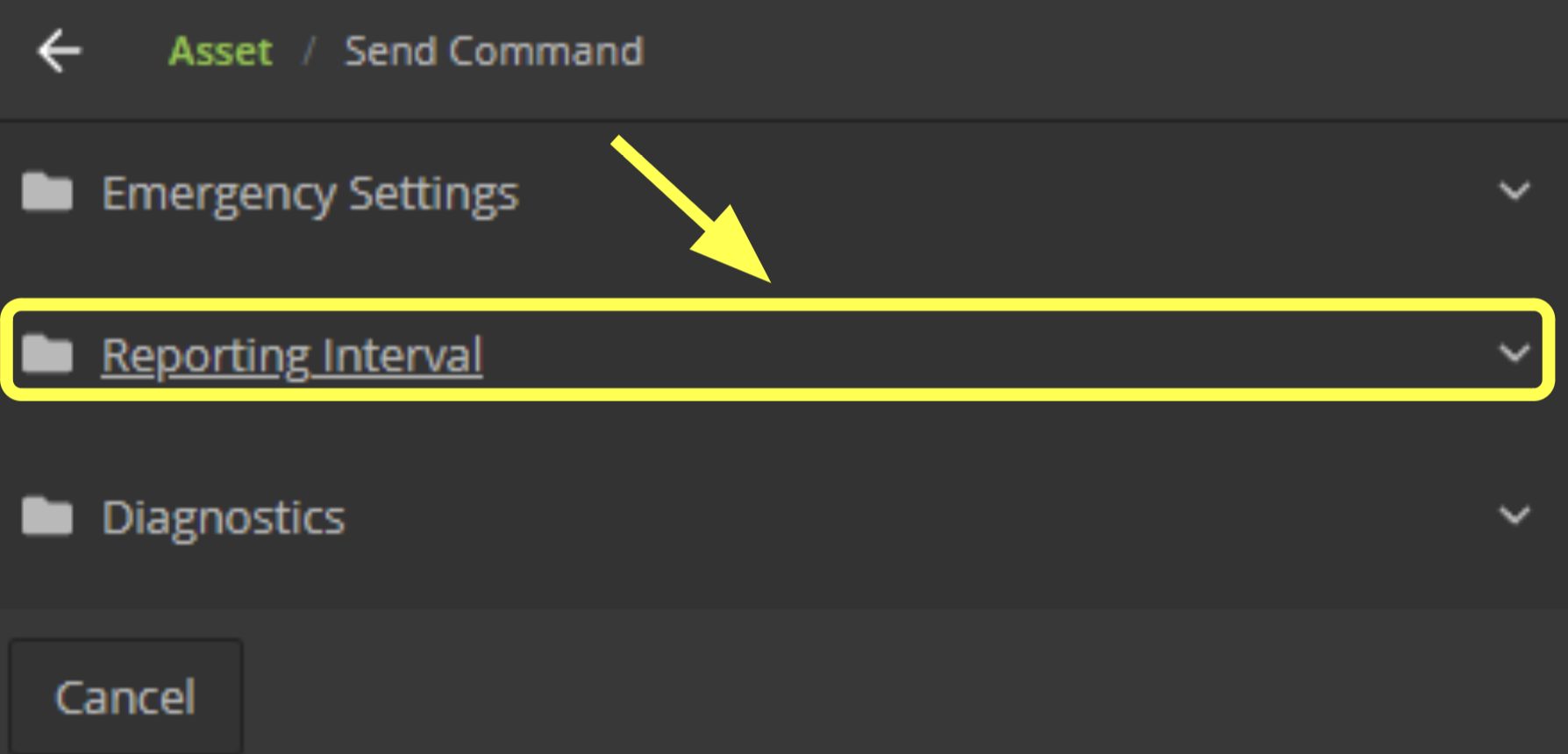
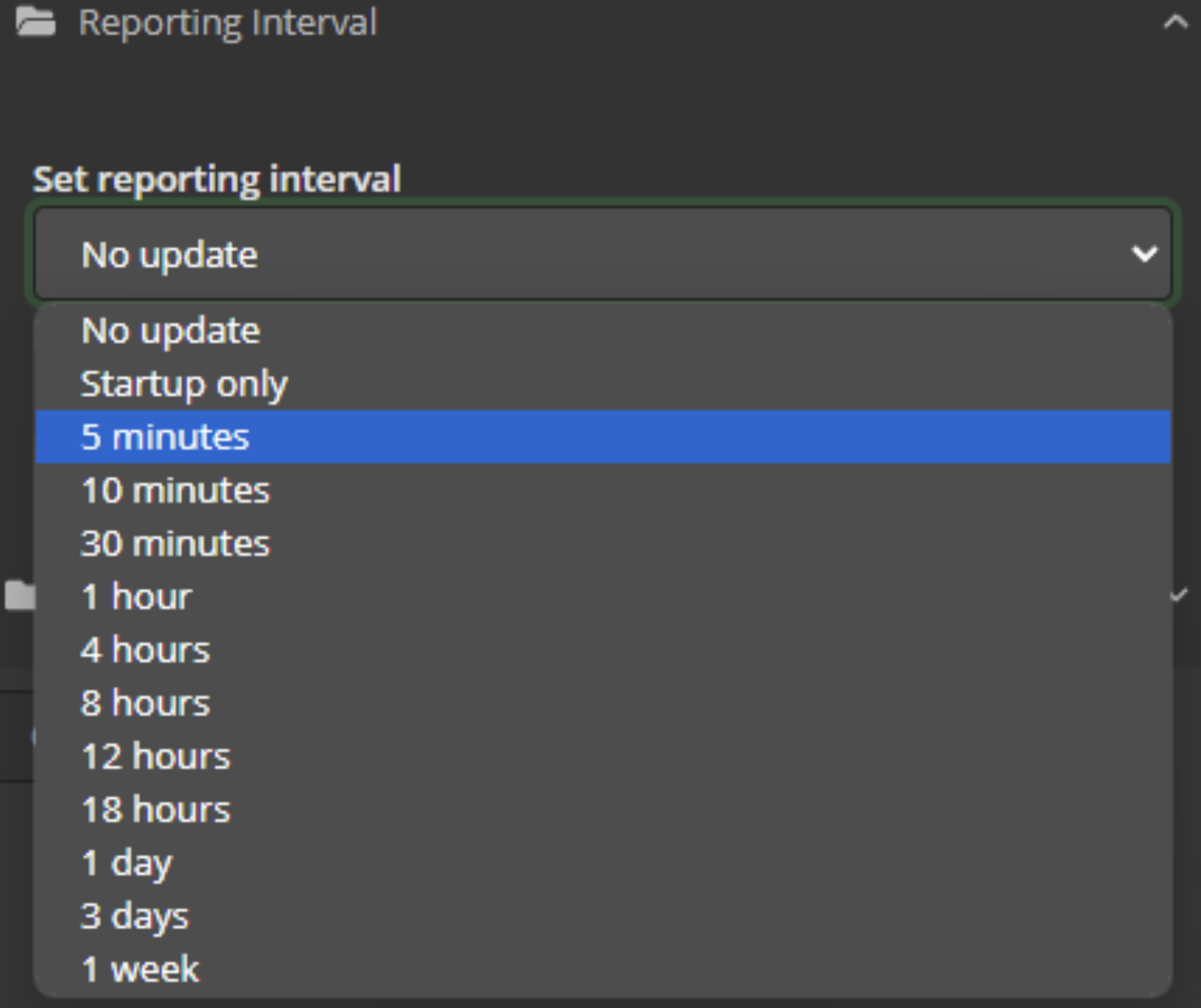
Choose the desired interval under Set reporting interval: No update, Startup only, 5 minutes, 10 minutes, 30 minutes, 1 hour, 4 hours, 8 hours, 12 hours, 18 hours, 1 day, 3 days or 1 week.
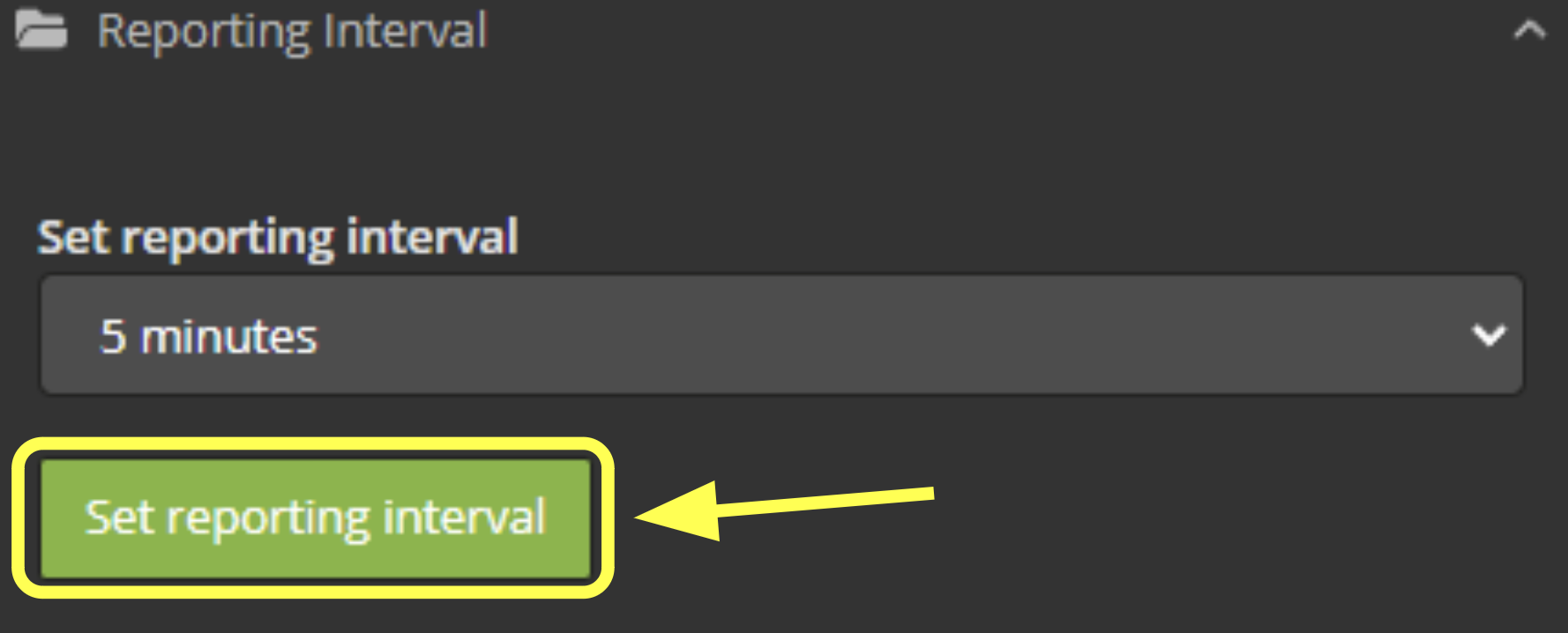
Click Set reporting interval.
On the handset
Press Menu → Setup → Location Options → Message Options → Regular Update and choose how often the handset should send its GPS location.
Manual Position Update
Press the Check In soft key on the right side of the handset to send a position report immediately.
Remote Commands
Besides the reporting interval, the Send Command menu for an Iridium Extreme asset provides:
- Emergency Settings — set the Emergency Destination the handset uses when the SOS button is pressed (Message, Call, or Message & Call) and the Emergency Recipient, or send Cancel Emergency to the handset.
- Diagnostics — Request Diagnostic Information from the handset, or Request Location for an on-demand position report.
Text Messaging
- Handset → GSatTrack. On the handset press Menu → Messaging → Create and write a free-form text message. It is shown to connected GSatTrack users as a message notification and recorded in the asset's message history.
- GSatTrack → Handset. Open the asset's Asset Options menu and choose Send Message. The message is transmitted to the handset immediately and GSatTrack confirms the transmission.
- Email → Handset. Compose an email to
<IMEI>@gsattrack.com. - SMS → GSatTrack. From the handset, send an SMS to
+442381680112containing the text to deliver to GSatTrack.
Inter-Device Messaging
A handset can message any other device in the same tracking account by prefixing the text with the recipient's Message Destination ID and a colon. Each asset's Message Destination ID is set in its Edit Config menu; if a device is given the ID 5, a text message reading 5:Hello Number Five is routed to that device.
Canned Messages
The Iridium Extreme holds up to 30 predefined messages. They are set up in GSatTrack and then transmitted to the handset over SBD:
- On the Settings tab create a new Canned Message Group.
- Under Canned Messages create up to 30 predefined messages, giving each an Index from 1 to 30.
- On the Assets tab open the asset's Asset Options menu, choose Edit Config → Settings, select the canned message group and click Send To Asset to synchronise the messages with the handset.
SOS / Emergency
How SOS alerts are delivered
The Iridium Extreme does not come pre-programmed to report emergencies to any monitoring service. Once the handset is registered with GSatTrack, pressing the SOS button sends an emergency report over SBD to GSatTrack, which is how your dispatch or monitoring team receives it: as the pop-up shown to every logged-in user and as email and text-message copies to your emergency contacts, both described below. Independently of GSatTrack, the handset can also send an SMS or place a voice call to an Emergency Recipient of your choosing; that is set on the handset, or from GSatTrack with Send Command → Emergency Settings.
Emergency contacts in GSatTrack
Every contact marked Is Emergency Recipient receives an email or text-message copy of an SOS message. To add one, go to Alerts → Contacts → Add New Contact and tick Is Emergency Recipient.
SOS behaviour
When the SOS button is pressed on a handset that is registered with GSatTrack and has SBD active, all of the following happen:
- The handset starts reporting its position every 5 minutes.
- Everyone logged in to GSatTrack receives a red pop-up with the asset's details, which must be acknowledged before it closes. This is delivered from the handset to GSatTrack over SBD.
- All contacts marked Is Emergency Recipient receive an email or text-message copy of the SOS message.
- Depending on how the handset itself is configured, it may also send an SMS alert or place a voice call directly. Neither affects GSatTrack.
Iridium Airtime
Iridium SBD airtime is tied to the handset's IMEI, not to the SIM card. SBD is activated on the IMEI and billed separately from the SIM card's voice and data plan; Iridium's SBD plan for the Extreme, LBS 8, includes 8 KB of SBD traffic per month.
Tracking via SMS Mode
An Iridium Extreme without an SBD (LBS 8) subscription can still provide basic tracking over SMS, with a much smaller feature set. On the handset set one of the three SMS destination recipients to 00442381680112 (or +442381680112) and add the handset to GSatTrack using its MSISDN (phone number) as the asset's ID. Every position report to every configured recipient consumes one SMS unit.
SBD Message Sizes
| Message | Size |
|---|---|
| GPS position report | 34 bytes |
| Text message | 24 bytes plus the number of characters in the text; roughly 1,800 bytes maximum depending on direction |
SIM Card Functionality
Features that work without a SIM card:
- Regular position and emergency updates can be sent to GSatTrack over SBD.
- Calls to 911 / 112 can be completed.
Features that require a SIM card:
- Free-text SMS or SBD messages cannot be sent or received.
- Non-emergency calls cannot be made or received.
- Without a SIM the handset auto-dials 112 when the SOS button is pressed instead of the configured emergency number, and calls to an emergency response service will not connect.
Troubleshooting
- No positions after registration. Dial
*#578#: the handset should show Registered with the portal provider name. If it does not, re-send the confirmation from Edit Asset → Send Portal Registration and keep the handset outdoors with a clear view of the sky. Confirm with the service provider that SBD is active for this IMEI and that DirectIP delivery points atmo.sbd.protocolparser.com(ormo.sbd.ca.protocolparser.comfor Canada) port4752, and that the asset's ID matches the handset's IMEI with the device type Iridium Extreme. - GSatTrack rejects Portal Registration Code #1. The code is derived from the IMEI, so a mismatch almost always means the IMEI was mistyped in the asset dialog. Re-check it against the handset's Portal Registration screen.
- The handset stopped reporting after being switched off and on. See the Power cycles note above — re-send the Portal Status confirmation.
- Reports show "NO GPS AVAIL" or an implausible location. Without a GPS fix the handset falls back to a coarse Iridium-network (Doppler) location. GSatTrack does not plot these as positions unless the report is an emergency. Move the handset to a clear view of the sky.
- A Send Command has no visible effect. Commands travel over SBD and are only delivered while the handset is on and in coverage; undelivered messages wait at the Iridium gateway for up to five days.
See Also
Supporting Features
- Assets
- Device Routing
- Send Command
- Canned Message Groups
- Canned Messages
- Contacts
- Two-Way Messaging